Download for WindowsDownload für WindowsDescargar para WindowsTélécharger pour WindowsTransferir para WindowsBaixar para WindowsСкачать для WindowsWindows版をダウンロード下载 Windows 版
Download for macOSDownload für macOSDescargar para macOSTélécharger pour macOSTransferir para macOSBaixar para macOSСкачать для macOSmacOS版をダウンロード下载 macOS 版
Download for Debian/UbuntuDownload für Debian/UbuntuDescargar para Debian/UbuntuTélécharger pour Debian/UbuntuTransferir para Debian/UbuntuBaixar para Debian/UbuntuСкачать для Debian/UbuntuDebian/Ubuntu版をダウンロード下载 Debian/Ubuntu 版
Download for Red Hat/FedoraDownload für Red Hat/FedoraDescargar para Red Hat/FedoraTélécharger pour Red Hat/FedoraTransferir para Red Hat/FedoraBaixar para Red Hat/FedoraСкачать для Red Hat/FedoraRed Hat/Fedora版をダウンロード下载 Red Hat/Fedora 版
Download for Arch LinuxDownload für Arch LinuxDescargar para Arch LinuxTélécharger pour Arch LinuxTransferir para Arch LinuxBaixar para Arch LinuxСкачать для Arch LinuxArch Linux版をダウンロード下载 Arch Linux 版
How to Buy Bitcoin on Bisq Without Owning BTC First
Windows walkthrough · Bisq 2 version 2.1.15 · Screenshots captured November 15, 2026
You can buy bitcoin through Bisq without already owning BTC by using Bisq Easy in the Bisq 2 application. Buyers do not need an upfront BTC security deposit. Bisq 1 works differently: you need BTC for its security deposit and transaction costs before you can trade.
You still need money to pay the seller and a payment method they accept. Starting without bitcoin does not mean getting bitcoin for free.
If you opened Bisq and were asked to fund a trade before buying your first bitcoin, that can feel like a dead end. The missing detail is that Bisq 1 and Bisq Easy use different trading arrangements. You do not need to fund a Bisq 1 deposit just to explore the Bisq Easy route.
For this guide, we installed Bisq 2 on Windows, checked the installer’s signature, created a profile, and explored the buying process and live offers. We stopped before accepting an offer or sending payment. The screenshots show our setup and offer review, not a completed purchase. Prices, available offers, and payment methods will change.
Why does Bisq ask for bitcoin before you can buy bitcoin?
In Bisq 1, a buyer needs BTC to fund the security deposit and transaction costs. The deposit is part of that protocol’s trade protection; it is not the money used to pay the seller for the bitcoin you are buying. That initial funding requirement is the obstacle many first-time users run into.
Bisq Easy offers another starting point. It is available in the separate Bisq 2 application and uses seller reputation rather than the Bisq 1 deposit arrangement. Do not assume the two provide the same protection or follow the same dispute process.
Which application fits a buyer who has no BTC?
Application
BTC needed before buying?
What to understand
Bisq 1
Yes, for the deposit and transaction costs.
Uses a multisig trade protocol with security deposits.
Bisq Easy in Bisq 2
No upfront BTC security deposit for the buyer.
Seller reputation matters. You still pay for your purchase using an agreed payment method.
What you need before starting
A Windows computer and an internet connection to run Bisq 2.
A way to pay for the purchase. This might be a bank transfer, a payment service, or a supported cryptocurrency, depending on the offer.
A way to receive bitcoin. Offers may support Onchain, Lightning, or both. You will need a compatible receiving wallet or supported receiving option when you actually trade.
Time to read the seller’s terms and understand the payment process before accepting anything.
You can install the application and inspect offers without paying. If none of the available payment methods work for you, stop at browsing. There is no need to start a trade just to finish the setup.
1. Install Bisq 2 on Windows
Open the official Bisq downloads page and find Bisq2 Downloads. Choose the Windows .exe in that section. For this walkthrough, we used version 2.1.15; use the current release when following along.
We also downloaded its PGP signature and checked the installer in Kleopatra, included with Gpg4win. A valid signature and a matching official signing-key fingerprint let you check the file against the developer’s signature. Follow the official verification instructions; downloading the signature file alone does not perform the check.
Windows displayed a SmartScreen warning about an unknown publisher during our installation. This warning is described in the release installation notes. We checked the signature before continuing. An unknown-publisher warning alone neither confirms malware nor proves a file is safe.
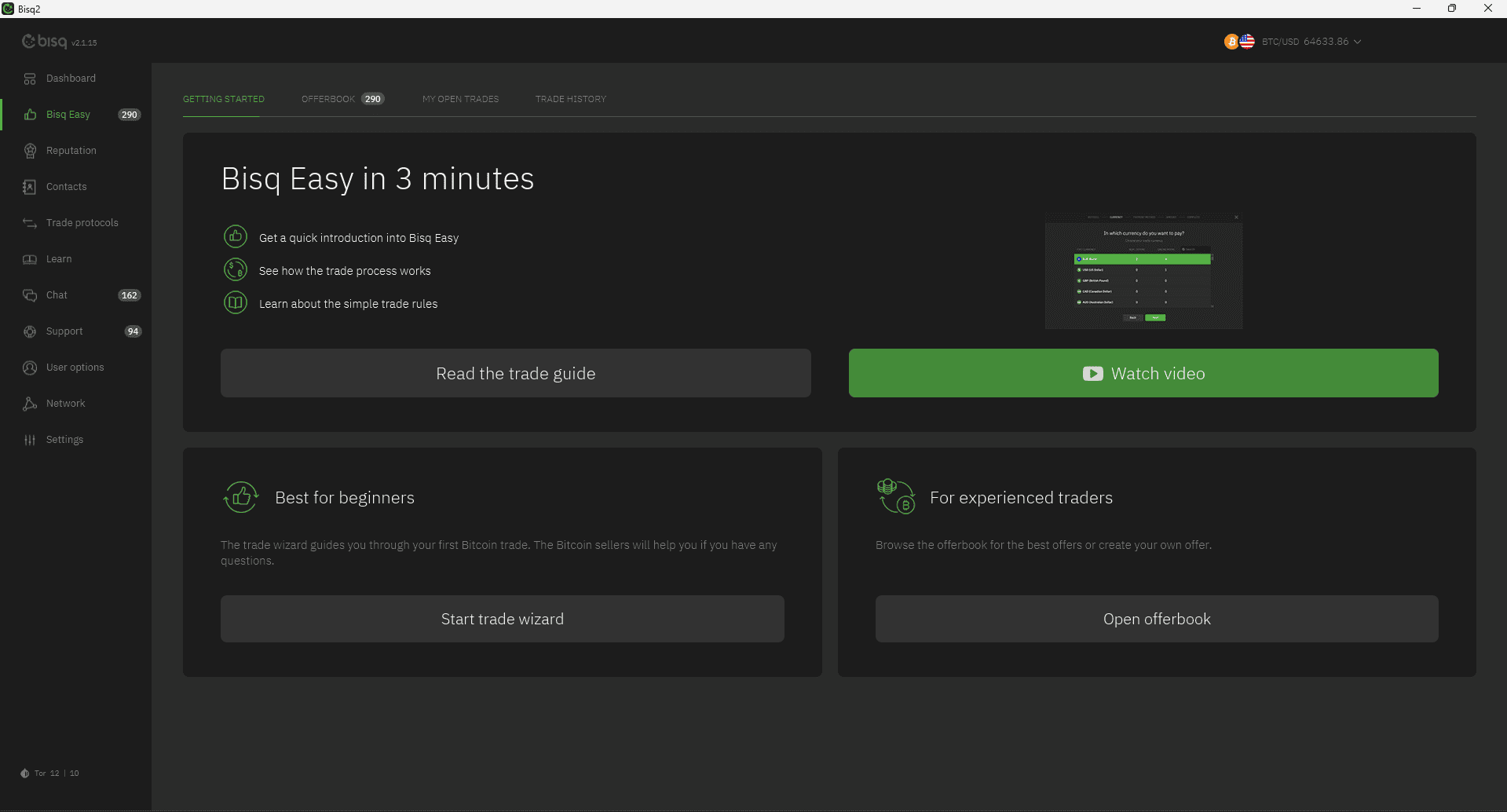
After installation, create your profile and let the application load network data. Open Bisq Easy, then choose Start trade wizard for the guided route. You can also browse the offerbook directly.
Our Windows installation: the getting-started screen offers a guided wizard and direct access to the offerbook. Select any screenshot to view it at full size.
2. Choose Buy bitcoin, your currency, and an amount
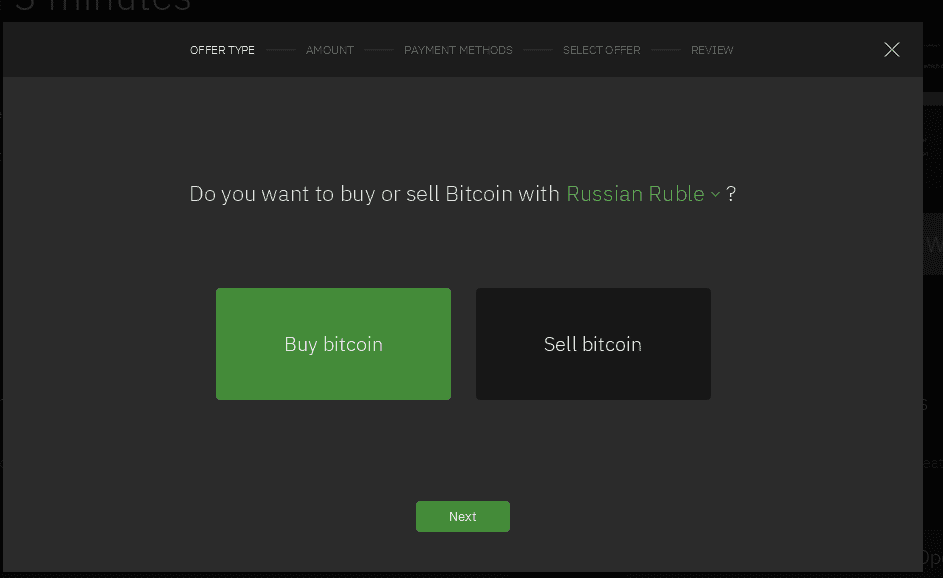
Choose Buy bitcoin. The currency beside the question is the currency used to price and pay for the purchase, not the asset you will receive. In our first screen it was Russian Ruble; we changed it to US Dollar to explore that market. Choose a currency you can actually pay with if you intend to trade.
The currency name is a dropdown. Change it before continuing if the displayed currency is not the one you want to use.
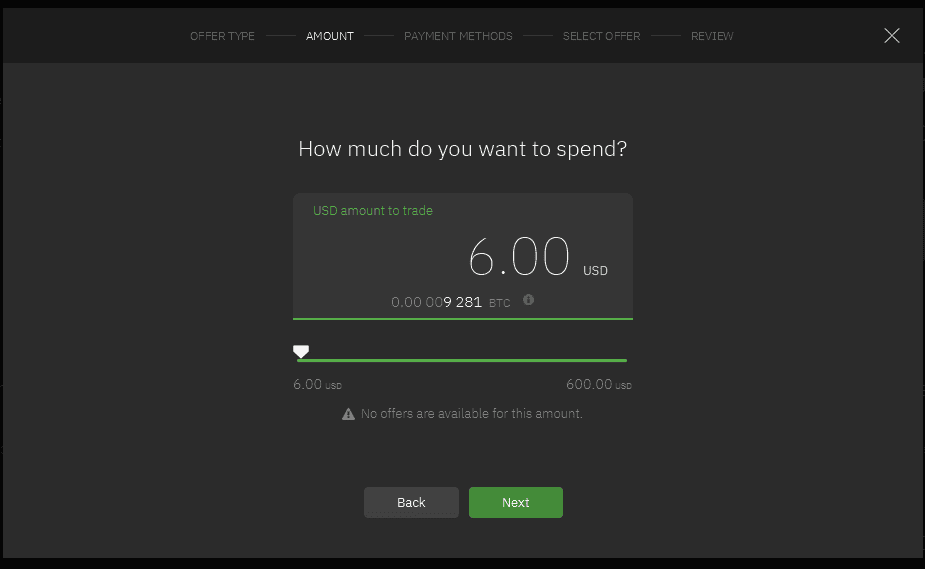
Next, enter the amount you want to spend. We initially saw a value of 6 USD, together with No offers are available for this amount. An amount appearing in the wizard does not mean a seller currently offers that amount.
No matching offer was available for $6 during our walkthrough. This is a snapshot of availability, not a permanent minimum purchase amount.
If no offer matches, review the available ranges in the offerbook or try another payment method or currency you can use. Do not increase your spending just to match an offer.
3. Check how you will pay and receive bitcoin
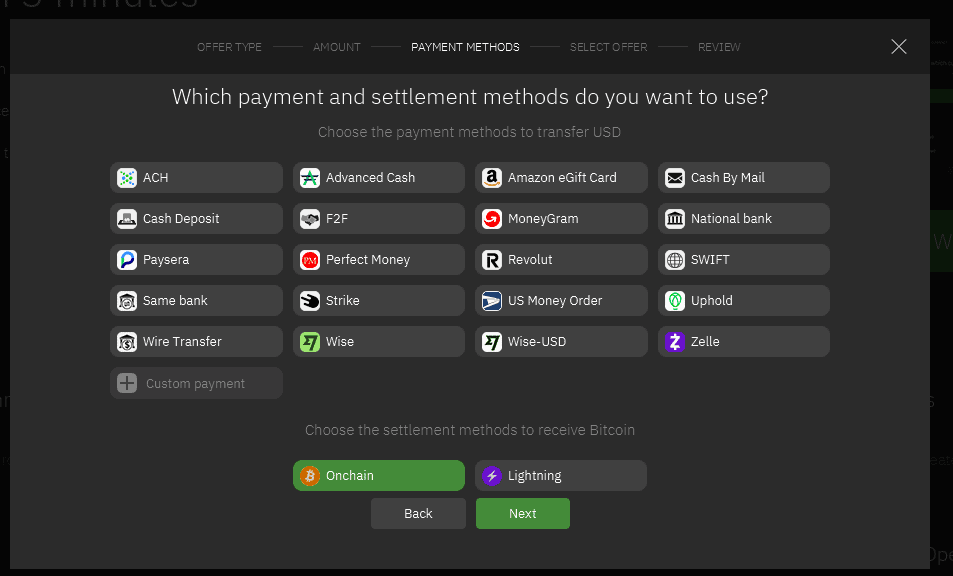
The wizard separates two choices: how you transfer the purchase payment and how you receive bitcoin. In the USD screen we saw options including bank transfers, Revolut, Wise, and other services. Their appearance in the selector does not guarantee a suitable offer or mean you are eligible to use every service.
Payment methods are shown above; Bitcoin delivery choices are below. Onchain was selected in our screenshot.
Onchain means receiving BTC through the Bitcoin blockchain. Lightning is a different delivery route and needs compatible receiving support. Choose what your receiving wallet and the offer support; do not treat the two as interchangeable address formats.
If you only own another cryptocurrency, such as BNB, you need an offer that explicitly accepts the asset and network you can use. A label such as Other coins is not confirmation that BNB is accepted. Read our payment methods guide for more context.
4. Read the offer from your point of view
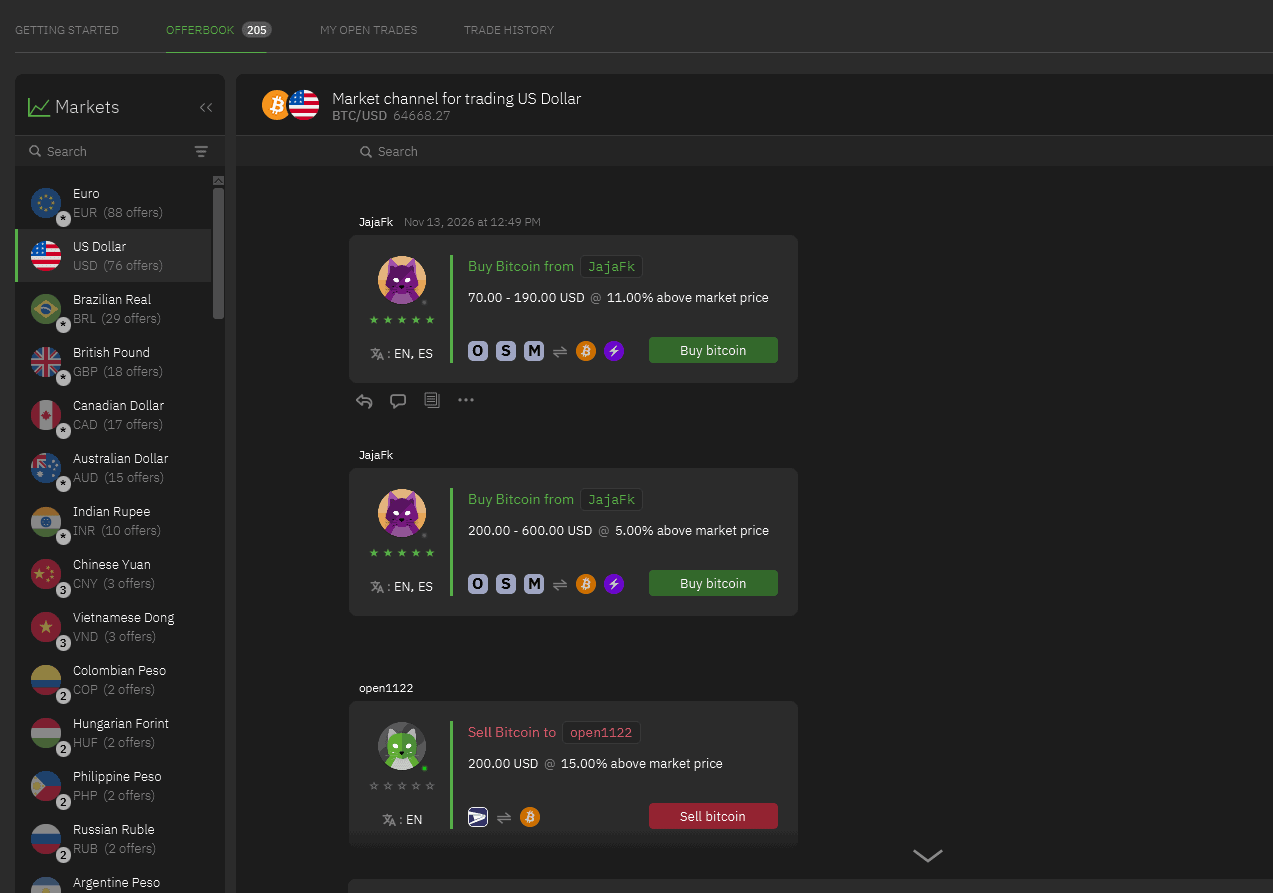
We closed the wizard and opened OFFERBOOK to compare actual listings. The view can include messages and both trade directions. The Only offers option hides ordinary messages; it does not filter buying versus selling.
Buy Bitcoin from… with a green button: you buy BTC from that seller.
Sell Bitcoin to… with a red button: you sell your BTC to that buyer.
These two buy offers had different amount ranges and price premiums. Neither is a recommendation of the seller.
In this example, a $70–190 offer was priced 11% above market, while a $200–600 offer was 5% above market. These were different purchase ranges, so the lower percentage was not automatically available for a smaller purchase.
Check the seller’s reputation and the information behind it, not just the displayed stars. Reputation is part of Bisq Easy’s protection model, but it is not a guarantee that a trade will go smoothly. Open the offer details using the document icon beneath the card before deciding whether to proceed.
A cryptocurrency-funded purchase example
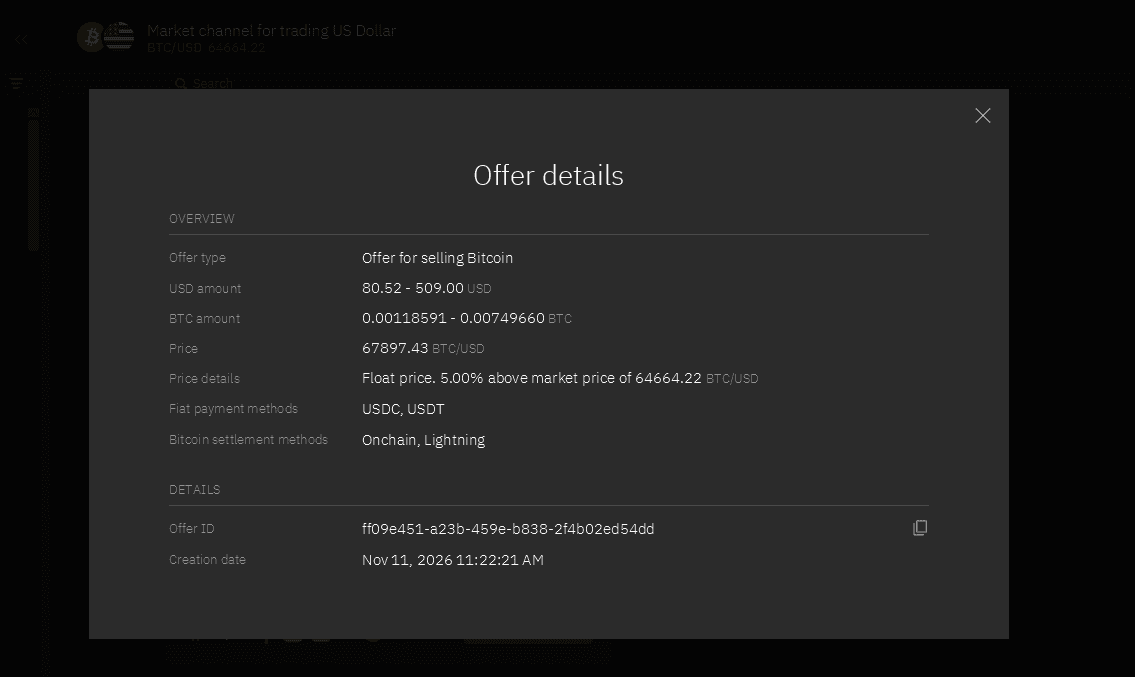
One seller offered BTC for USDC or USDT, with a purchase range of $80.52–509 and a floating price 5% above market. Onchain and Lightning were both listed as delivery options. A USD price label did not mean this particular offer accepted a dollar bank transfer.
This offer accepted USDC and USDT. The screenshot does not establish which token networks were accepted, and it does not confirm support for BNB.
A bank-transfer purchase example
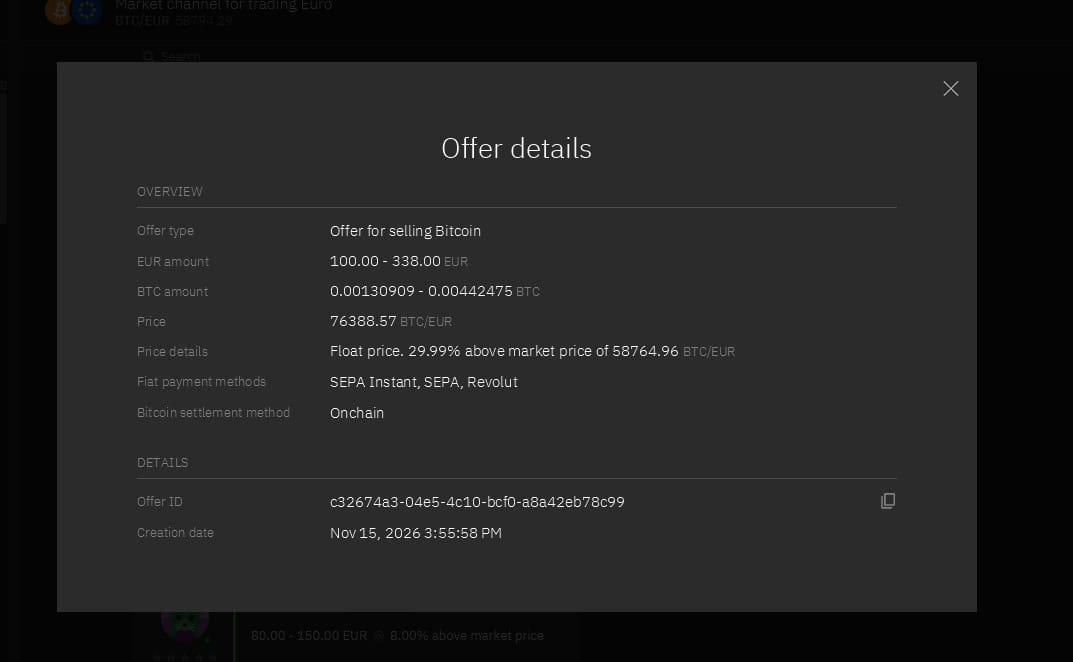
We then switched to the Euro market and inspected an offer accepting SEPA Instant, SEPA, and Revolut. Its range was €100–338, with Onchain delivery and a floating price 29.99% above market.
A bank-payment example from our session. The 29.99% premium was this seller’s price, not a standard Bisq charge or a typical rate established by our test.
The premium is included in the quoted BTC price. It should not be confused with an upfront security deposit. Compare the final bitcoin amount you would receive, the money you would send, and any payment-provider or transfer costs. See our Bisq fees guide for the differences between protocol fees, network costs, and seller premiums.
5. Before you commit to a purchase
This is where our hands-on walkthrough ended. We did not accept an offer, contact a seller, send money, or receive BTC. Before proceeding with your own purchase, check:
The seller and reputation details. Review the profile and the seller’s terms.
The total and currency. Make sure the amount is within your intended budget and the final BTC amount makes sense at the quoted price.
The payment route. Confirm that you can use it. For cryptocurrency payments, confirm the exact asset and network before any transfer.
The receiving route. Have compatible Bitcoin receiving details ready and follow the application’s instructions.
The trade rules and next steps. Read the current instructions in the application and the official Bisq Easy documentation before accepting an offer.
You can stop here without spending anything. Browsing helped us understand the process and identify which payment methods we could actually use. Do not accept an offer merely to take another screenshot or test what happens next.
Common questions
Do I need to buy BTC elsewhere before using Bisq Easy?
No upfront BTC security deposit is required for the buyer in Bisq Easy. You still need funds in a payment method accepted by the seller to pay for the bitcoin itself.
Can I use BNB to buy my first bitcoin?
Only if an offer explicitly accepts BNB and the network you can send it on. We saw custom cryptocurrency payment labels, but did not confirm a BNB-compatible offer. Do not send BNB to a Bitcoin address.
Does no BTC deposit mean there are no costs?
No. The seller may charge a price premium, and payment or transfer costs may apply. In our screenshots, sellers quoted different premiums, including 5% and 29.99%. These examples are not a standard fee schedule.
Why are there no offers for the amount I entered?
The available listings may not cover that amount with your selected currency and payment methods. We saw this warning for $6. Check current offer ranges without assuming you must spend more.
Is Bisq Easy the same as Bisq 1?
No. Bisq Easy is a trading protocol available in Bisq 2. Bisq 1 is a separate application with a different deposit and multisig trading model. Choose the application that matches the instructions you are following.
Did this walkthrough include a completed trade?
No. We verified the Windows installer, installed Bisq 2, created a profile, and reviewed the wizard and live offers on November 15, 2026. We did not test payment, delivery times, receiving BTC, or dispute handling.
Ready to explore the available options? Choose Bisq 2 for the Bisq Easy route, then compare offers and payment methods before committing funds.
Original screenshots: our Windows session using Bisq 2 v2.1.15 on November 15, 2026. Offers shown are historical examples, not endorsements or promises of current availability. This guide is published by bisq.info, an independent site.